


HD Video Player All Formats
4.35.29K Reviews
App Specs
- Version
- v12.1.446
- Updated On
- License
- Free
- Downloads
- 100,000,000+
- Developer
- ASD Dev Video Player for All Format
- Categories
- Video Players & Editors
- Platform
- Android, iOS
Screenshots

 Analysis by AppCompare
I tend to notice a video player most when something goes wrong: a file refuses to open, subtitles are missing, or basic controls get in the way of watching. HD Video Player All Formats aims to make a phone a dependable place for local video, with playback tools and file browsing in one app. I find it most useful when my library includes a mix of files, though a few setup checks can save frustration.
Where playback can get stuck
A player can advertise broad format support and still encounter a file that behaves differently from the rest. A video may open without its audio, show subtitles out of sync, or take a while to start. Those problems can come from the file itself as well as the player, so I avoid assuming that one failed clip means the whole app is unreliable.
When I’m troubleshooting, I first try another video in the same folder. If that one plays normally, the issue is more likely tied to the original file or its encoding than to everyday playback. If several files fail in the same way, I check the app and device before spending time moving or converting everything.
This distinction matters most for people who collect clips from different sources. Two files that look similar in a file browser can be encoded quite differently. A general-purpose player is convenient, but it cannot guarantee that every unusual file will behave exactly like a common MP4.
Setup checks that prevent avoidable friction
On first use, I’d make sure the phone has the Android version the app requires and that the videos are stored somewhere the app can browse. The minimum system requirement is Android 6.0, and the current release is v12.1.429. If a folder appears empty, I’d check where the file was saved and whether it is available locally rather than assuming the player has lost it.
I also find it useful to test one ordinary clip before organizing a whole collection around a new player. Check that video and sound both work, then try a file with subtitles if that is part of your routine. This quick test reveals whether the controls and playback fit your habits before you rely on the app for a trip or a long evening.
For subtitles, keeping the subtitle file in a clear, easy-to-find location makes the process less fiddly. If a film displays no captions, confirm that the subtitle file is present and load it from local storage. A mismatch between the video and subtitle file can also explain why captions fail or do not line up; trying the correct companion file is a better first step than repeatedly changing unrelated settings.
Worth Reading Before You Choose

Flipboard Shows What News Apps Must Do Beyond the Feed

Switching to Android Auto Means Rethinking Your Driving Routine

Google Calendar Makes a Crowded Week Easier to Manage

Ludo King Makes the Most of the Minutes Between Plans

Baby Panda World Brings Quick Play to Modern Phones, but Its Game Library Feels Busy

ESPN’s Live Game View Makes Following Close Games Easier
First Impressions and Interface
Right off the bat, the app welcomes you with a sleek and intuitive interface. The design is clean, with all the controls exactly where you’d expect them to be. Navigating through the app is a breeze. You can easily find your video files, and the thumbnail previews make it super convenient to locate exactly what you’re looking for.
Supported Formats Galore
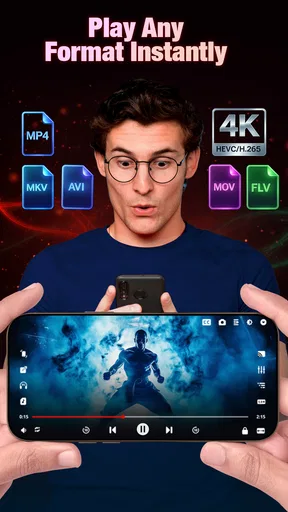
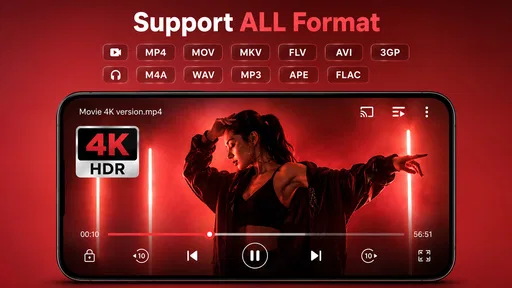
One of the standout features is, as you might guess from the name, the wide range of formats this app supports. From MP4 to AVI, MKV to FLV, it’s got you covered. It’s like having a Swiss Army knife for videos in your pocket. This versatility is a lifesaver, especially when you have a mixed bag of video files.
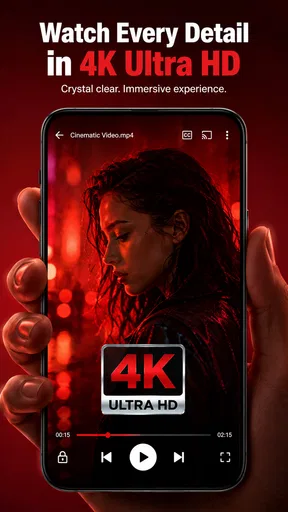
Additionally, it supports high-definition playback, ensuring you get the best viewing experience possible. I tested it with some 4K content, and it played seamlessly without any hiccups. The quality was crisp, and the colors popped beautifully on my screen.
User Experience and Features
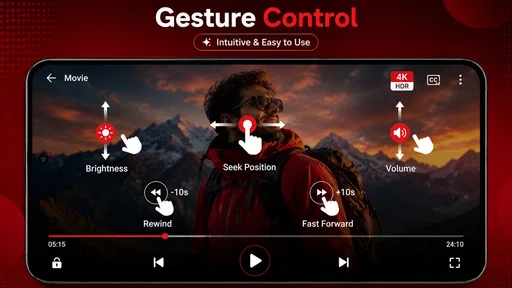
Beyond just playing videos, this app comes loaded with features that enhance your viewing experience. The gesture controls are particularly handy; you can adjust the volume and brightness with a simple swipe. It’s these little touches that make using the app feel so natural and fluid.
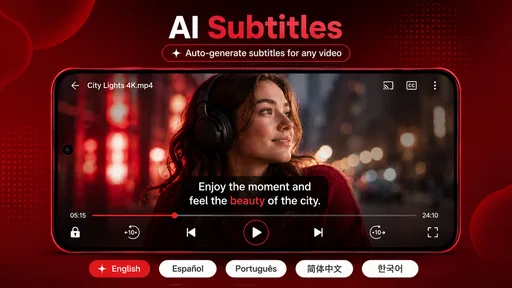
Another feature I found useful is the subtitle support. You can easily load subtitles from your local storage, and it even supports multiple subtitle formats. If you’re watching foreign films or shows, this is an absolute game-changer.
For those who like to customize their viewing experience, there are options to adjust playback speed, and even an equalizer to tweak audio settings to your liking. It’s like having a mini home theater system right on your phone!
Making the controls work for you
Gesture controls are convenient once they become familiar, but they can feel less precise than tapping a button, especially when I’m holding the phone one-handed or watching in a dark room. I’d try a short clip first and check how the brightness and volume gestures respond before settling in for a film. That small adjustment period helps avoid accidentally changing a setting when I only meant to pause or seek.
Playback speed is most useful for spoken material, such as a lecture recording or a long tutorial, where I want to move through sections efficiently. For a movie, changing speed can make dialogue and sound feel unnatural, so I treat it as a practical listening option rather than a general quality upgrade. The equalizer is similarly best used with a clear purpose: a modest adjustment may help dialogue stand out, while heavy changes can make music and effects less balanced.
A useful workflow for a mixed-language watchlist is to test subtitles on one episode or short clip, then repeat the same local-file process for the rest. That helps separate an app-control issue from a naming or pairing problem with a particular subtitle file. If captions are essential for every video, I’d keep the files organized together instead of leaving them scattered across downloads and folders.
Performance and Reliability
Now, let’s talk about performance. The app runs smoothly, with quick load times and minimal lag. Even when skipping through a video, the app doesn’t break a sweat. It’s refreshing to use an app that’s both powerful and stable.
Battery consumption is also reasonable. I watched a couple of movies back-to-back, and while the phone did warm up a bit, it wasn’t anything out of the ordinary. The developers seem to have done a solid job optimizing the app.
Recovering a viewing session
If playback stops or a file does not open, I’d work through the simplest checks in order: try another file, reopen the problem video, and confirm that the file is still available on the phone. If the issue affects several videos, closing and reopening the app is a sensible next step. These basic checks can tell you whether you are dealing with one troublesome file or a broader playback problem without turning a quick watch into a technical project.
For travel, I prefer to test downloaded videos before leaving home rather than discovering a problem when there is no convenient connection. I also keep important files in a folder I can locate easily. This is not a special feature of the player; it is simply a reliable way to make local playback less stressful when I’m offline or short on time.
When the player may not be the cause
A phone’s screen, speaker, available storage, and the condition of the video file all affect the experience. If a clip looks soft, sounds distorted, or stutters, I compare it with another file before blaming the player. A high-resolution label cannot make a low-quality source look sharper, and smooth playback depends on the device being able to handle the particular file.
Storage is another easy factor to overlook. If a file was moved, deleted, or only partially saved, a player cannot reliably play it just because its thumbnail appeared earlier. Checking that the video is fully present and opening a known-good clip can quickly narrow down the cause. When only one file causes trouble, replacing or obtaining a clean copy may be more useful than changing every playback setting.
For people deciding between this and the video app already on their phone, the main trade-off is flexibility versus familiarity. A built-in player may be enough if it handles your everyday clips and you rarely need to adjust playback. This app is more appealing when you want a dedicated place to browse varied local videos, use gestures, load subtitles, or tune playback. Someone who mainly streams through subscription services may get little benefit from adding another local player.
Who will get the most from it
I’d recommend it to someone who watches downloaded films, keeps personal recordings on a phone, or receives video files in several formats. The combination of browsing, subtitle loading, speed controls, and audio adjustment makes it more flexible than a very basic player. It can also suit a commuter who wants to keep a few episodes on-device and choose them from a local library rather than relying entirely on streaming.
Picture a practical evening: I have a film saved for a train ride, a subtitle file alongside it, and only a few minutes to get ready. I can locate the video using its thumbnail, load the local captions, and check that the sound is clear before heading out. If the film is unfamiliar or the captions matter, doing that check in advance is much better than finding a mismatch halfway through the trip.
I’d skip it if I only watch online streams, prefer the simplest possible interface, or depend on a specialized playback setup that needs tools beyond ordinary mobile video controls. A desktop media player can be a better fit for managing a large archive or diagnosing complicated files, while a streaming app is the natural choice for content watched directly from its service. The right option depends on whether local-file convenience is genuinely part of your routine.
Price, audience, and everyday expectations
The app is free to install and is developed by ASD Dev Video Player for All Format. It is rated for Everyone, and its in-app purchases range from $0.49 to $35.99 per item, so I’d check the purchase details in the app before choosing anything paid. The free starting point makes it easy to see whether its controls and file browsing suit you, but I would not assume that every optional item is necessary for basic playback.
Its 4.4 average from around 346,000 ratings and more than 100 million installs suggest that it has reached a broad audience, though those figures cannot tell me whether it will handle one particular file on my phone. I use popularity as context, not as a substitute for testing the video types and subtitle workflow I actually care about.
Final Thoughts
Overall, the app is a robust and feature-rich choice for local video playback. Whether you're a casual viewer or a video aficionado, it has useful tools to explore, particularly if your library includes varied formats and subtitles. The combination of a user-friendly interface, extensive format support, and thoughtful controls makes it worth considering on your device.
If you’re on the hunt for a reliable video player that gives you high-quality playback without any fuss, give this one a try. I’d start with a familiar clip, test the subtitle workflow if you use captions, and see whether the gesture controls feel natural. For people who regularly watch local videos, that quick trial is enough to tell whether it fits; for streaming-only viewers, the player already on the phone may be all they need.
Pros
- Supports a wide range of video formats.
- User-friendly interface with easy navigation.
- Offers high-quality video playback.
- Customizable playback settings available.
- Includes subtitle support for videos.
Cons
- Contains ads that can be intrusive.
- No offline mode for video playback.
- Limited advanced editing features.
- Occasional lag on lower-end devices.
- Subscription required for ad-free experience.
FAQs for HD Video Player All Formats
What video formats does HD Video Player All Formats support?
HD Video Player All Formats supports a wide range of video formats, including MP4, AVI, MKV, FLV, WMV, and MOV. This versatility ensures that you can play almost any video file without needing to convert it first, making it a highly convenient option for watching videos on your device.
Does HD Video Player All Formats support subtitles?
Yes, HD Video Player All Formats supports subtitles in various formats such as SRT, SSA, and ASS. You can easily load subtitle files and adjust their synchronization with the video playback. This feature is particularly useful for foreign films or if you need subtitles for better understanding.
Are there any in-app purchases or ads in HD Video Player All Formats?
While HD Video Player All Formats is free to download, it does include ads to support the developers. There are also optional in-app purchases that can enhance the user experience by removing ads or adding additional features, providing users a more seamless and uninterrupted viewing experience.
Can I use HD Video Player All Formats to stream videos from online sources?
HD Video Player All Formats primarily focuses on playing video files stored on your device. However, some versions of the app may support streaming from online sources, depending on your device and the app store policies. Always check the latest app description for updated streaming capabilities.
Is HD Video Player All Formats safe to download and use?
HD Video Player All Formats is generally safe to download from reputable app stores like Google Play and the Apple App Store. It's important to ensure that you're downloading from a trusted source to avoid any security risks. Regular updates help maintain security and add new features.


